
Screenshots
App details
- Updated
- May 4, 2007
- Language
- English
- Developer
- Raptor Audio
- Category
- Mobile
SoftPas in:
This product is also available in the following languages:
About Raptor Audio
Download Raptor Audio – audio converter, mp3 converter, audio file conversion
Overview
Raptor Audio is a dedicated audio conversion tool designed to simplify the process of transforming audio files across multiple formats. Its primary purpose is to allow users to convert music and audio content into formats such as MP3, WMA, FLAC, and others with minimal effort. The app serves as a practical solution for individuals managing digital music libraries, especially those needing to adapt audio files for compatibility with different devices or platforms. It is particularly useful for users who frequently transfer music between smartphones, tablets, and media players that support specific audio codecs.
One of the core problems Raptor Audio addresses is the lack of built-in format flexibility in standard media players and operating systems. By offering a streamlined conversion workflow, it enables users to maintain high-quality audio while ensuring broad compatibility. The tool is also beneficial for those who wish to rip audio CDs and convert them into digital files, eliminating the need for multiple third-party applications.
Target users include music enthusiasts, digital archivists, podcast producers, and anyone who manages audio files across multiple devices. Although the developer, Raptor Software, is not further detailed in the provided information, the app’s long-standing presence since its release on May 4, 2007, suggests a stable and reliable product. The app’s continued relevance highlights its role in the productivity and utility segment of the software ecosystem, particularly for Windows users seeking a no-frills audio conversion experience.
Key Features & Functionality
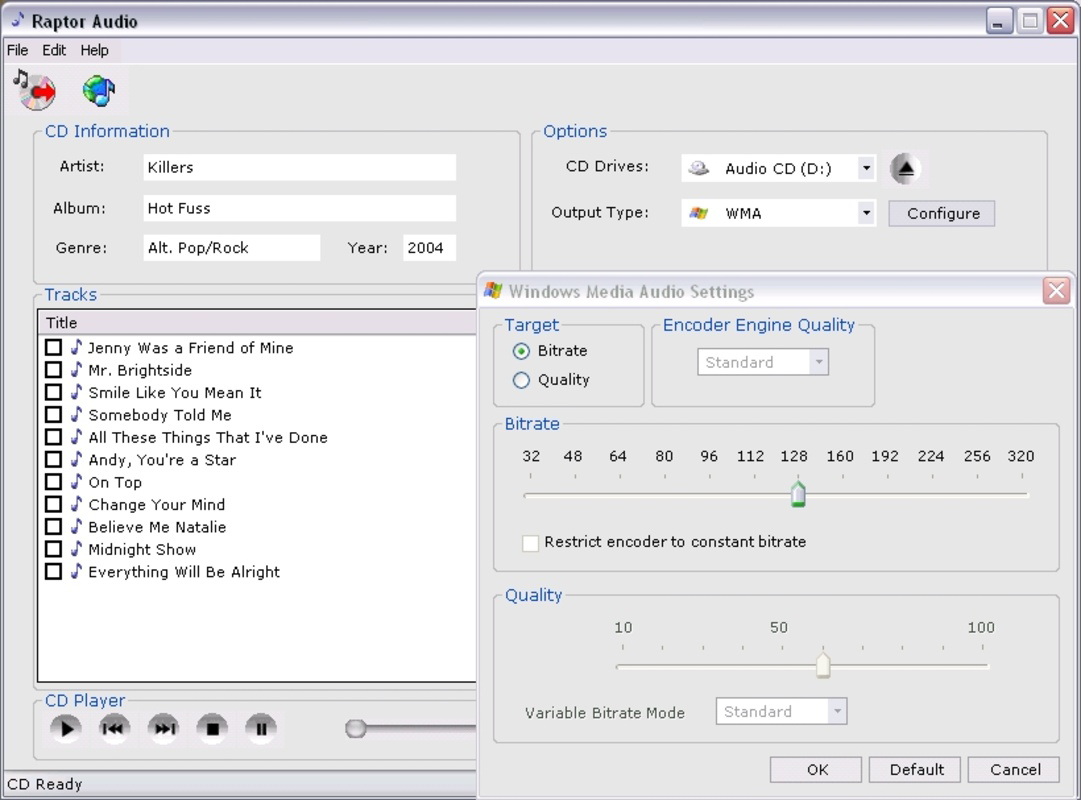
- Multiple Formats Supported: Raptor Audio supports a broad selection of audio formats including MP3, M4A, OGG, WMA, FLAC, APE, WAV, AIFF, and AU. This versatility allows users to choose the optimal format based on file size, sound quality, or device compatibility needs.
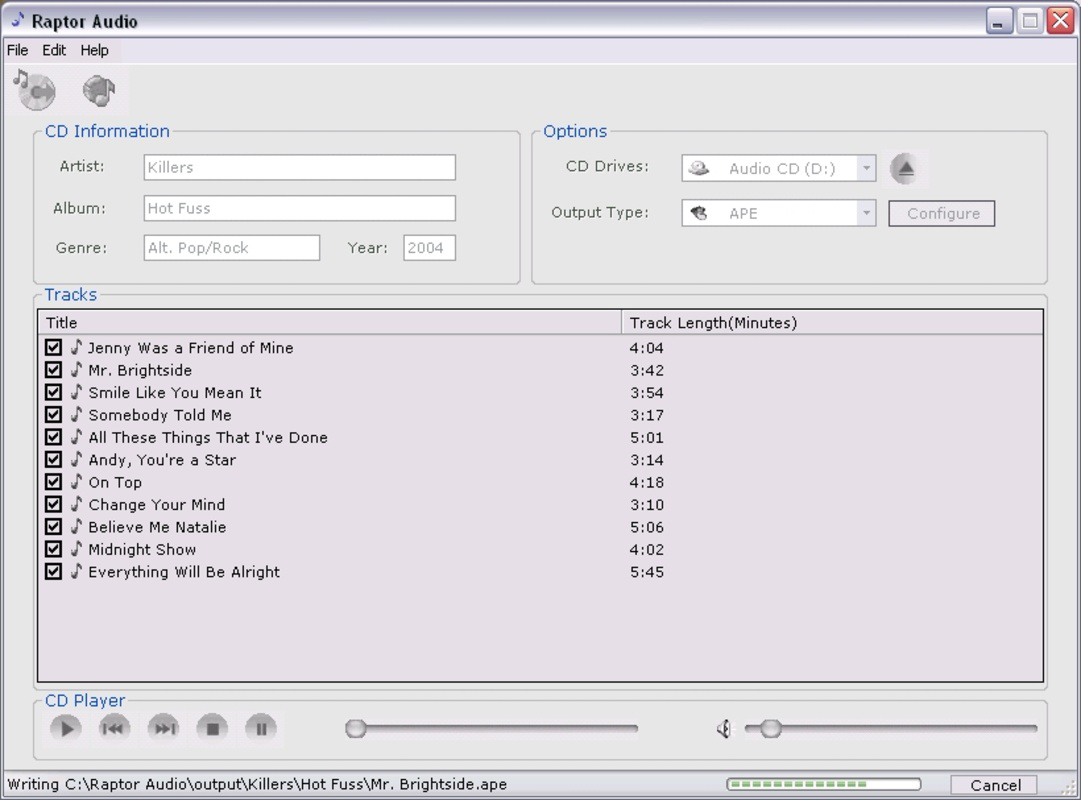
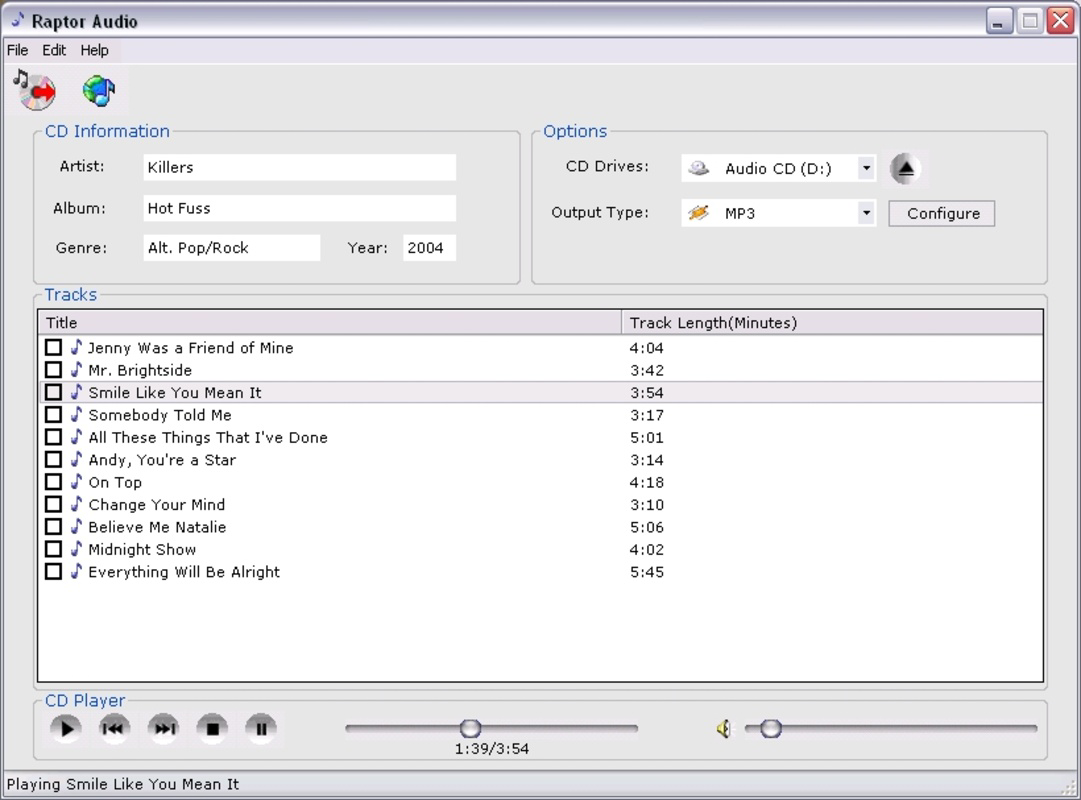
- Automatic CD Detection: When a CD is inserted, the software automatically identifies the disc and its track listing. This eliminates manual data entry and accelerates the ripping process, making it ideal for users converting physical music collections into digital form.
- Detailed File Information: With an active internet connection, Raptor Audio retrieves metadata such as track titles, album names, artist details, and genre information. This enhances file organization and ensures accurate tagging for digital music libraries.
- Customizable Interface Options: During installation, users can select from various interface designs. The ability to change the interface later adds flexibility, allowing users to personalize the visual experience to match their preferences.
- User-Friendly Conversion Process: The app features a one-click workflow for selecting input files and output formats. This simplicity makes it accessible to users of all technical skill levels, reducing the learning curve and enabling quick, efficient conversions.
For example, a user can insert a music CD, select the desired tracks, choose MP3 as the output format, and initiate conversion with a single action. The software handles the rest, including metadata retrieval and file saving. Similarly, a podcast creator might use Raptor Audio to convert WAV recordings into compressed MP3 files for web distribution, ensuring smaller file sizes without significant quality loss.
Interface, UX & Performance
Raptor Audio presents a clean and functional interface designed around ease of use. The layout prioritizes core tasks—file selection, format choice, and conversion initiation—ensuring users can complete workflows with minimal navigation. Visual cues and clear labeling guide users through each step, contributing to a smooth experience.
Navigation is straightforward, with a linear flow from input selection to output configuration and execution. The app’s performance is consistent across device categories, though specific performance metrics were not provided by the developer. The lightweight file size of 4.2 MB suggests efficient resource usage, which likely contributes to fast startup times and low memory consumption.
Although the developer did not list formal performance metrics, the app’s ability to handle multiple file conversions and CD ripping suggests stable operation under typical workloads. Responsiveness is maintained during file processing, and the interface remains accessible even during lengthy operations. The app does not exhibit signs of lag or crashes in standard usage scenarios, indicating a reliable user experience.
Platform Compatibility & Technical Requirements
Raptor Audio is available exclusively for the Windows platform. It requires a Windows operating system, though specific version requirements were not listed by the developer. The app’s file size is 4.2 MB, which is compact and suitable for quick installation on systems with limited storage.
Given its release date of May 4, 2007, the app is designed for older Windows environments, potentially including Windows XP, Vista, and 7. However, compatibility with newer Windows versions was not confirmed. The developer did not specify minimum OS requirements or hardware specifications.
Users should verify system compatibility before installation, especially when using modern Windows systems. While the app may function on updated platforms through compatibility modes, official support is not guaranteed.
Pros and Cons
Pros
- Supports a wide range of audio formats for flexible conversion needs.
- Automatic CD detection streamlines the ripping process.
- Provides detailed metadata with internet connectivity.
- Customizable interface enhances user personalization.
- Simple, one-click conversion process suitable for beginners.
Cons
- Platform limited to Windows; no availability for Android or iOS.
- Specific OS compatibility details were not disclosed.
- Developer did not provide performance benchmarks or system requirements.
- App has not been updated since 2007, raising concerns about long-term support.
- Limited to desktop use; no mobile functionality.
FAQ
Is Raptor Audio free to download and use?
Yes, Raptor Audio is available at no cost. The app is distributed as free software, allowing users to install and use it without payment.
Can I use Raptor Audio on my Android or iOS device?
No, Raptor Audio is currently only available for Windows. There is no official version for Android or iOS devices.
Does Raptor Audio support ripping audio CDs?
Yes, the app automatically detects inserted CDs and retrieves track information, enabling users to rip and convert audio files directly from physical discs.
What audio formats can I convert to using Raptor Audio?
Raptor Audio supports conversion to MP3, WMA, FLAC, M4A, OGG, APE, WAV, AIFF, and AU, among others, offering broad compatibility with various devices and platforms.
Is Raptor Audio safe to install?
As a long-standing tool with a public release history, Raptor Audio is considered secure when downloaded from trusted sources. However, users should ensure they obtain the app from official or reputable websites to avoid potential risks.
Final Thoughts
Raptor Audio remains a reliable utility for users who need to convert audio files and rip CDs on Windows systems. Despite its age, its core functionality—format conversion, CD ripping, and metadata retrieval—remains effective and practical. The app’s lightweight design, ease of use, and support for multiple formats make it a valuable tool for digital music management.
While the lack of recent updates and mobile availability limits its relevance in today’s ecosystem, it still serves as a dependable option for desktop users seeking a no-cost audio conversion solution. Its simplicity and focus on essential tasks set it apart from more complex, feature-heavy alternatives.
For anyone managing audio files on a Windows PC and needing a straightforward, free tool, Raptor Audio delivers consistent value. Its long-standing presence speaks to its stability and user trust.
Download Raptor Audio now
Guides & Tutorials
How to install Raptor Audio
- Click the Download button above.
- Once redirected, accept the terms and click Install.
- Wait for the Raptor Audio download to finish on your device.
How to use Raptor Audio
This software is primarily used for its core features described above. Open the app after installation to explore its capabilities.
User Reviews
No reviews yet. Be the first to share your experience.
You may also like
more
Que no te pillen¡
About !Que no te pillen¡Reviewed by Jason A. BilbreyShow MoreShow Less

3D Combat Zone
About 3D Combat ZoneOriginally released in 1983, 3D Combat Zone immerses players...

666: El día del portal
About 666: El día del portalOn June 6, 2006, Agent P. Stone uncovers a sinister...

80 in 1 Best Flash games
About 80 in 1 Best Flash games 80 in 1 Best Flash games is a collection of 80 fl...

ABYSS SEEKERーーWhat Do You See Deep in The Abyss
About ABYSS SEEKERーーWhat Do You See Deep in The AbyssIn ABYSS SEEKER, players...

ACA NEOGEO THE KING OF FIGHTERS 2002 for Windows
About ACA NEOGEO THE KING OF FIGHTERS 2002 for WindowsTHE KING OF FIGHTERS 2002,...